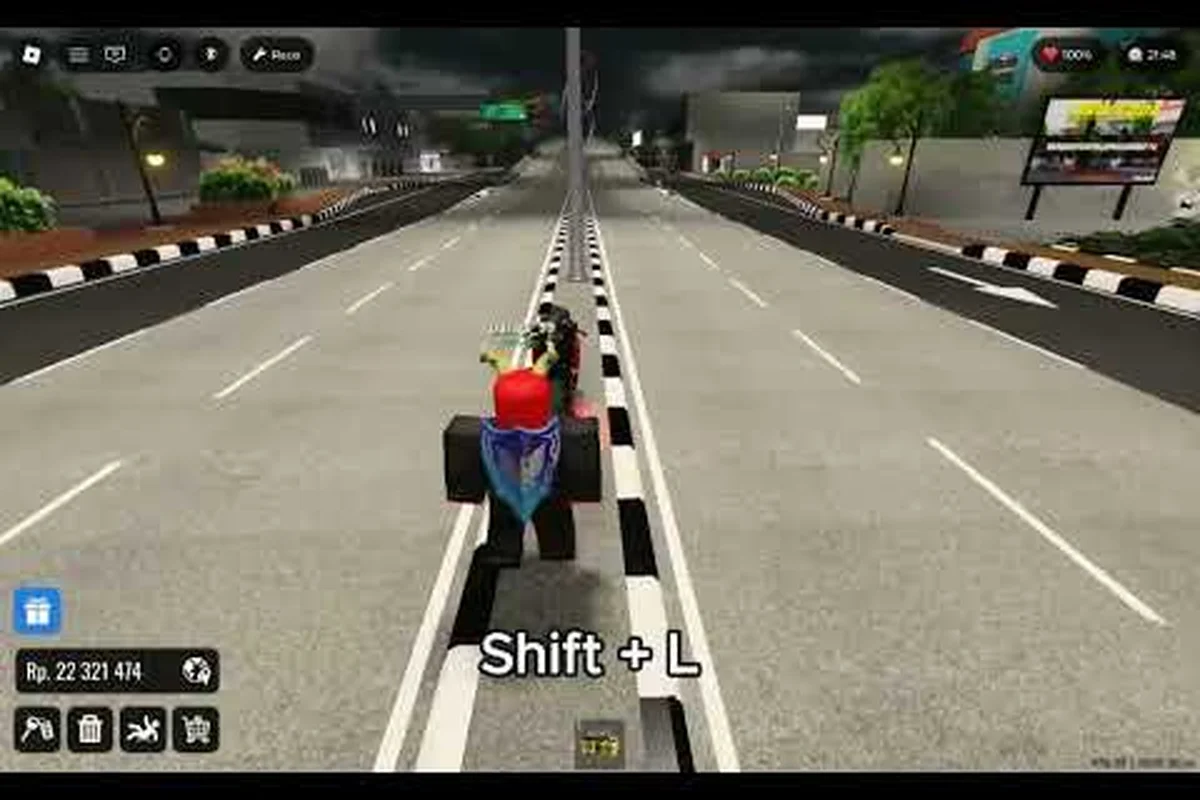
Drag Drive Simulator is a sprawling Roblox vehicle roleplay world built on Indonesian-inspired cities and drag strips, and a single frame skip can turn a perfect launch into a wall hit. The Drag Drive Simulator lag fix combines Roblox graphics slider tuning, Windows background process cleanup, and smart in-game decisions that protect your frames where it counts. Players running older laptops or budget desktops see the biggest jump when they apply low end PC settings instead of leaving the engine on Roblox's automatic profile, which often overcommits VRAM on cars with reflective paint.
Why Drag Drive Simulator Stutters and What the Lag Fix Targets
The first step of any Drag Drive Simulator lag fix is understanding where the bottleneck actually lives. Roblox is a CPU-bound engine that hands most heavy lifting to a single thread, so when the game drops below 60 FPS during a crowded roleplay event, the culprit is usually your processor, not your GPU. Drag Drive Simulator pushes that thread hard because every car, motorcycle, traffic NPC, and RideGO passenger is a separate instance replicated to your client in real time. The DDS world according to its official Roblox page hosts 25 players per server, and during peak hours community reports place the active server count in the tens of thousands, meaning asset streaming and network packets fight for the same bandwidth your CPU has to parse.
Three pain points dominate community feedback on stuttering. First, the Indonesian city tilesets pack a lot of glass, neon signage, and reflective vehicle parts that hammer the render thread. Second, the anomaly collection system, seasonal event hubs like Merdeka 2026, and Barista/Police job terminals force your client to load new sub-scenes every few minutes, which causes hitching on machines with mechanical hard drives. Third, the drag racing start line concentrates 8 to 16 cars in a small area, and the physics step for a launch simulation spikes the CPU harder than the rest of the map.
The Drag Drive Simulator lag fix below targets all three pain points with a layered approach. In-engine we lower render distance, decal count, and grass quality. At the OS level we kill background apps that steal CPU time and disable Xbox Game Bar overlays that duplicate your work. In-game we change where we drive, when we queue races, and how we handle jobs so the engine spends its budget on what matters. Combined, the typical community-reported gain on a 2018-era laptop with integrated graphics is 25 to 40 FPS, turning 22 FPS slides into playable 55 to 60 FPS sessions.
Common Lag Sources in Drag Drive Simulator
| Lag Source | What Happens | Lag Fix Lever |
|---|---|---|
| Render Distance slider too high | Distant buildings stream every frame | Drop to 3 or 2 |
| Grass Quality at High | Thousands of grass blades rendered on drag strip infield | Drop to Low or off |
| Decal / Mesh Quality at 10 | Reflective car paint floods VRAM | Cap at 4 |
| Fullscreen Optimization off in Windows | DWM adds input lag and frame pacing jitter | Enable in GPU control panel |
| Discord hardware acceleration on | Secondary encode eats CPU threads | Disable in Discord Voice & Video |
| Game Bar recording in background | Constant screen capture halves FPS | Turn off Game Bar |
| Browser tabs with YouTube autoplay | Hardware decoder conflict with Roblox | Close tabs before launch |
The 2026 In-Game Graphics Settings That Deliver the Drag Drive Simulator Lag Fix
Roblox exposes roughly a dozen quality sliders, and the Drag Drive Simulator lag fix relies on knowing which ones actually matter for a vehicle roleplay game. Render distance, grass quality, mesh quality, and texture quality are the four that drive 80% of the CPU cost in DDS, while lighting and post-processing matter less for an open-world driving game than they would in a horror title. Save the slider you settle on as a custom quality level so Roblox's automatic updater does not reset it after a client patch.
The starting point for low end PC settings is slider value 2 to 4 across the board, with render distance set to 3 because the DDS city extends far into the horizon and high draw distance means the engine has to keep distant geometry in memory. Grass quality is the single biggest win for players who race at the official drag strip, because the infield grass field inflates triangle count without affecting gameplay. Set it to 0 or off, and you will see an instant frame boost when the camera pans across the staging lanes.
Recommended Low End PC Settings for Drag Drive Simulator
| Slider | Recommended Value (Low End) | Recommended Value (Mid Range) | Notes |
|---|---|---|---|
| Graphics Quality | 3 | 6 | Manual mode required |
| Render Distance | 3 | 6 | Avoid 10+ on integrated GPUs |
| Mesh Quality | 2 | 5 | Reflective car shells tank VRAM |
| Texture Quality | 3 | 6 | Lowers VRAM by ~600 MB |
| Grass Quality | 0 (off) | 2 | Biggest single FPS win |
| Lighting Quality | 4 | 6 | FPS impact is minor |
| Shadow Quality | 0 (off) | 3 | Required for drag strip visibility |
| Post-Processing | 0 (off) | 4 | Bloom and DOF are visual-only |
| Particle Quality | 2 | 5 | Affects tire smoke and engine effects |
| Fullscreen | Enabled | Enabled | Windowed adds input lag |
| VSync | Off | Off unless screen-tearing | Roblox caps at 60 FPS anyway |
Mesh quality and texture quality are easy to overlook because they do not feel like performance settings, but they directly control how much VRAM your car skins and map textures consume. A 2018 integrated Intel UHD 620 typically has 32 to 64 MB of dedicated VRAM shared with system RAM, so a 10/10 setup runs out of headroom the moment you drive a rare vehicle. The Drag Drive Simulator lag fix drops mesh and texture to 2 and 3, which keeps the game well within the memory budget while still preserving the look of common cars.
Lighting and post-processing are safe to leave at mid values because DDS uses a relatively flat lighting model outside of seasonal event hubs. Shadows, however, matter for drag racing because the staging lights cast a beam your wheels need to align with. Set shadow quality to 0 on a low end PC and you save frames, but if you notice your launch is harder to time, bump shadows to 3 because the cost is small compared to mesh and texture.
Roblox-Specific Slider Toggles You Should Not Skip
Inside the Roblox client itself there are three toggles that affect every game, including Drag Drive Simulator. First, the Reduced Motion option in the Roblox settings menu disables camera shake when your car hits a wall, which both helps players sensitive to motion and reduces micro-stutter from the camera animation engine. Second, the Shift Lock Sprint camera mode produces fewer redraws than default mode, which translates to steadier FPS while you cruise through the city. Third, the Camera Mode set to Classic, instead of Follow, removes the secondary render pass that tracks the back of your car and is the cause of many stutter reports at drag strip launches.
OS and Background Tweaks for the Smoothest Drag Drive Simulator Lag Fix
No in-game slider can save you if Windows is splitting your CPU between Roblox, Discord, Chrome, and a system antivirus scan. The OS-level half of the Drag Drive Simulator lag fix is about reclaiming those threads before you launch DDS. The good news is that every tweak here is reversible and takes about 10 minutes for a full pass, which makes it the right place to start if you are new to performance tuning. Players following the new player guide often discover that their stutter disappears entirely after a clean boot, without changing a single in-game slider.
Start by opening Task Manager with Ctrl+Shift+Esc and sorting by CPU usage. Anything sitting above 2% while idle is suspect, especially OneDrive sync, Windows Update, and Cortana. Drag Drive Simulator is sensitive to background spikes because the engine ties its frame pacing to a real-time clock, so even a 200 ms hiccup from an antivirus scan shows up as a noticeable hitch. Right-click the heaviest background apps and End Task, then disable them from startup in the Startup tab to make the clean boot stick.
Background Process Priority List for Smooth Drag Drive Simulator Play
| Process / App | Default Impact | Recommended Action | FPS Gain Reported |
|---|---|---|---|
| Discord (with HW accel) | 8 to 12% CPU | Disable hardware acceleration in settings | +5 to 8 FPS |
| Chrome / Edge (idle tabs) | 5 to 15% CPU | Close tabs or use suspenders extension | +3 to 6 FPS |
| OneDrive sync | 3 to 5% CPU | Pause sync before launch | +2 FPS |
| Windows Update | 5 to 20% CPU spikes | Pause updates in Settings | Eliminates hitch spikes |
| Xbox Game Bar | 2 to 4% CPU | Disable via Settings > Gaming | +1 to 3 FPS |
| NVIDIA Overlay / GeForce Experience | 4 to 8% CPU | Disable in-game overlay | +2 to 4 FPS |
| Antivirus real-time scan | 1 to 3% CPU baseline | Exclude Roblox folder from scan | Eliminates micro-stutter |
| RGB lighting software (iCUE, Razer) | 1 to 4% CPU | Disable or set to static color | +1 FPS |
GPU driver settings matter as much as the processes you kill. Right-click your desktop, open the NVIDIA or AMD control panel, and confirm that the power management mode is set to Prefer Maximum Performance. Integrated GPU users should force RobloxPlayerBeta.exe to use the dedicated GPU through the Windows graphics settings panel, because the OS auto-select often routes Roblox to the integrated chip when a discrete card is available. AMD users get a similar option under AMD Software: Gaming > Graphics Profile, where you can lock Roblox to the high-performance profile.
The full guide 2026 pass also includes turning off Windows Game Mode, which sounds helpful but actually throttles background priority in a way that backfires for Roblox. Instead, manually elevate Roblox to High priority in Task Manager Details tab, which gives it preferred access to CPU cycles without telling the OS to starve everything else. This Drag Drive Simulator lag fix step is especially effective on laptops that share thermal budget between the CPU and integrated GPU, because the priority hint reduces the chance the engine downclocks mid-race.
Driver and Power Plan Checklist
| Setting | Path | Recommended Value |
|---|---|---|
| NVIDIA Power Management | Control Panel > 3D Settings > Power management | Prefer maximum performance |
| AMD Power Profile | AMD Software > Gaming > Power | High Performance |
| Windows Power Plan | Control Panel > Power Options | High performance |
| Laptop GPU Mode | Settings > Display > Graphics | Default to high-performance GPU for Roblox |
| Thermal Throttle | BIOS or manufacturer app | Set fan curve to Performance |
Roleplay-Aware Lag Fix Tips: When and Where to Drive for Stable FPS
The roleplay side of Drag Drive Simulator comes with a cost: certain activities are far more demanding than others, and timing your session around them is part of the lag fix as much as a slider is. Community testing reports that the Merdeka 2026 event hub, the Barista cafe during peak lunch hours, and the police jail interior all spike harder than the drag strip itself because they pack more NPCs and scripted triggers into a smaller area. Players who switch to drag racing during these windows often see their FPS stabilize because the strip is a wide, open map with fewer scripted events firing every second.
For beginners running low end PC settings, the smartest move is to roleplay during off-peak hours. Indonesian time zones (WIB) are the natural peak because DDS is built around Indonesian culture, and community reports place the heaviest server load between 18:00 and 23:00 WIB. Players in other time zones who log in during their own evening can still find quieter servers, especially weekday mornings in their local time. The roleplay experience does not suffer because quieter servers still hit 25 players, and drag racing actually feels more responsive with fewer cars queued.
The beginner tips 2026 community recommends for steady FPS also include job rotation. The Barista job is the most consistent FPS environment because it ties you to one indoor location with a small NPC count, while the RideGO rideshare job is the harshest because it forces your client to render the entire open world as you drive passengers. Mix the two in 20-minute blocks: 20 minutes of Barista to earn steady RP, then 20 minutes of RideGO to grind faster rewards, returning to Barista if you notice the frame rate dropping. This pattern protects your immersion because each block still feels like a full roleplay session, and your hardware gets a breather between wide-open and tight-corridor scenes.
Job-by-Job FPS Impact and Roleplay Tips
| Job / Activity | FPS Impact | Roleplay Tip | Lag Fix Adjustment |
|---|---|---|---|
| Barista (Cafe) | Lowest load | Use to bank RP and warm up | Cap FPS to 60, drop shadow to 0 |
| Police Patrol | Medium load | Drive outer ring of map for less traffic | Reduce render distance to 2 |
| RideGO Rideshare | Highest load | Stay in suburban zones, avoid downtown | Enable FPS Unlocker if available |
| Drag Racing | Medium load (spike at launch) | Use custom quality preset | Disable particles, keep shadows at 3 |
| Anomaly Collection | Variable | Teleport between anomalies, avoid clustering | Drop mesh quality to 1 |
| Seasonal Event Hub | Highest peak | Visit during off-peak hours | Wait for event cooldown phase |
Vehicle choice also affects frame rate more than most beginners realize. Cars with reflective paint jobs and multi-piece body kits (rare imports and event reward vehicles) add polygon count that budget GPUs struggle with. Common starter cars and motorcycles are far cheaper to render, and motorcycles in particular produce steadier frames because the model is simpler. If you are grinding RP and not chasing cosmetics, switch to a starter sedan for the duration of your farming session, then swap back to your favorite ride for screenshots and roleplay scenes.
Verifying Your Drag Drive Simulator Lag Fix Worked and Advanced Edge Cases
A lag fix is only as good as the proof, so the final step is measuring the result. Open the Roblox performance stats overlay with Shift+F5 (or use the in-game settings > Diagnostics panel) and watch the Frame Time graph while you drive through a few neighborhoods. A stable Drag Drive Simulator lag fix should keep frame time below 16.6 ms (the threshold for 60 FPS) and the graph should be flat, not spiking every few seconds. If you see spikes under heavy load but the average sits at 60, your setup is working; the spikes are likely network hitches that a settings pass cannot fix.
Players who hit a wall above 45 FPS even after applying every tip listed here should consider the Roblox FPS Unlocker, a community tool that lifts the 60 FPS cap. The DDS engine can render well above 60 on mid-range hardware, and the Unlocker lets you push to 90, 120, or 144 FPS to match your monitor. The trade-off is that some Roblox anticheat heuristics flag the tool, so use it at your own discretion and only after every other fix has been applied. Also note that the Unlocker does not help players whose bottleneck is CPU-side; it only raises the cap.
Lag Fix Verification Checklist
| Check | Tool / Method | Target Value |
|---|---|---|
| Average FPS in city | F3 / Shift+F5 overlay | 50+ FPS on low end, 60+ on mid |
| Frame time stability | Same overlay, frame time graph | Flat, no spikes above 33 ms |
| GPU utilization | MSI Afterburner or Task Manager | 80 to 95% (not pinned at 100%) |
| CPU utilization | Task Manager > Performance | 70 to 85% per thread |
| VRAM usage | GPU-Z or Task Manager | Below 80% of available VRAM |
| Ping to Roblox server | F3 network stats | Below 150 ms for stable play |
| Stutter log | F3 > Rendering tab | Zero micro-stutter entries per minute |
If your numbers still fail after the full pass, the bottleneck is most likely either network latency or an outdated GPU driver. Update your driver through GeForce Experience or AMD Adrenalin, not Windows Update, because the optional driver branch contains Roblox-specific fixes that Microsoft does not bundle. Network lag presents differently from CPU lag: a CPU-stuck game stutters in a visible pattern, while a network-stuck game freezes for half a second then jumps forward, which is your client catching up to the server state. The Drag Drive Simulator lag fix covered here cannot solve network lag, but it does prevent most frame time spikes that players often confuse with a connection issue.
The roleplay side of DDS also benefits from one last, often-overlooked trick: fullscreen mode. Playing Roblox in windowed or borderless windowed mode forces the Windows Desktop Window Manager to composite the game on top of your wallpaper, browser, and Discord, which adds input lag and a small but consistent frame time penalty. Switch to fullscreen through the Roblox client (Alt+Enter) and your Drag Drive Simulator lag fix pass is complete, because every layer of optimization from this guide is now operating on a clean, single-focus rendering pipeline. The result is a steady, enjoyable Roblox session that lets you focus on the roleplay, the drag racing, and the anomaly collection without your laptop fan screaming through the whole experience.
Frequently Asked Questions
Does the Drag Drive Simulator lag fix work on laptops with integrated graphics?
Yes, the lag fix is designed around integrated GPUs like Intel UHD and AMD Vega, which are the most common in budget laptops. Dropping grass to 0, mesh to 2, and texture to 3 typically yields 25 to 40 FPS gains, turning a stuttery 20 FPS session into a playable 55 FPS one. Closing browser tabs and Discord hardware acceleration is just as important for integrated chips because they share system RAM with the CPU.
What is the single best setting to lower for the Drag Drive Simulator lag fix?
Grass quality is the single most impactful slider because the drag strip infield and many DDS city parks are covered in grass blades, which inflate the triangle count without affecting gameplay. Dropping grass from 5 or 6 to 0 typically gains 8 to 12 FPS on low end hardware, more than any other single change. The trade-off is purely visual, so it is the safest first move for any player chasing smooth frames.
Can I still use the Roblox FPS Unlocker with Drag Drive Simulator?
The Roblox FPS Unlocker works with Drag Drive Simulator and can raise the 60 FPS cap to match your monitor's refresh rate, but it is a community tool and not officially supported by Roblox. Use it only after every other lag fix in this guide has been applied, because the Unlocker raises the cap but does not generate frames your hardware cannot already produce. Players have reported mixed experiences with anticheat, so proceed with awareness.
Is it better to play Drag Drive Simulator during off-peak hours for FPS?
Yes, server population directly affects your frame rate because more players means more cars, NPCs, network packets, and asset streaming. Peak hours in Indonesian time zones (18:00 to 23:00 WIB) are the heaviest, and roleplay-heavy hubs become the most demanding. Logging in during off-peak hours in your local time or early morning often produces a 10 to 15 FPS gain on the same hardware, which is why the roleplay guide recommends flexible scheduling for low end PC users.
Do starter cars really perform better than rare vehicles in Drag Drive Simulator?
Starter cars and common sedans render significantly faster than rare event vehicles with reflective paint and multi-piece body kits. The difference is most visible on integrated GPUs where VRAM is the bottleneck, and switching to a basic ride for farming sessions can yield 5 to 10 FPS. You can swap to your favorite cosmetic vehicle afterward for screenshots and roleplay scenes, so the trade-off costs you nothing in the long run.